马上注册,加入CGJOY,让你轻松玩转CGJOY。
您需要 登录 才可以下载或查看,没有帐号?立即注册

×
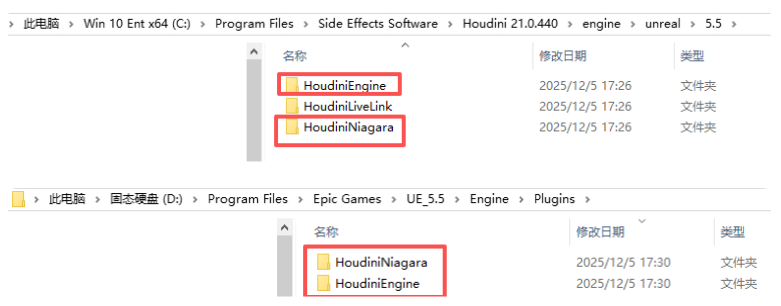
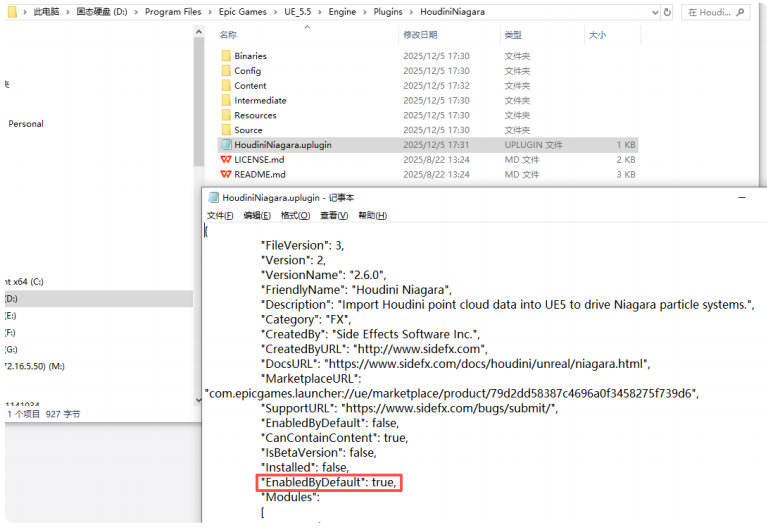
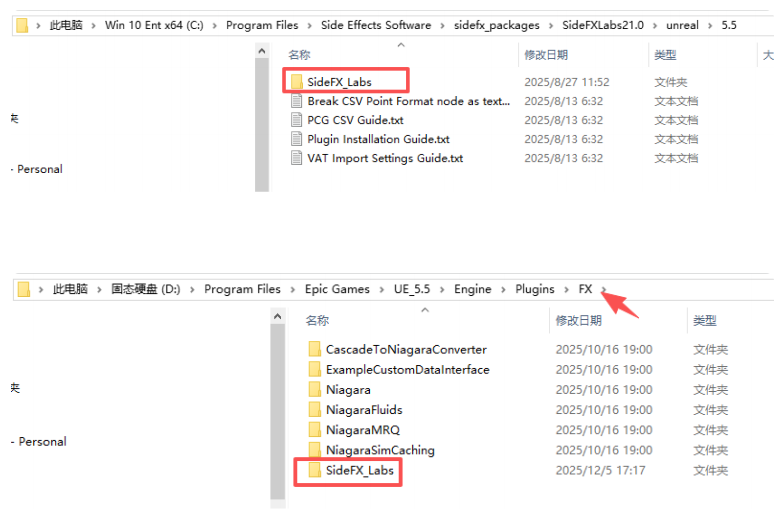
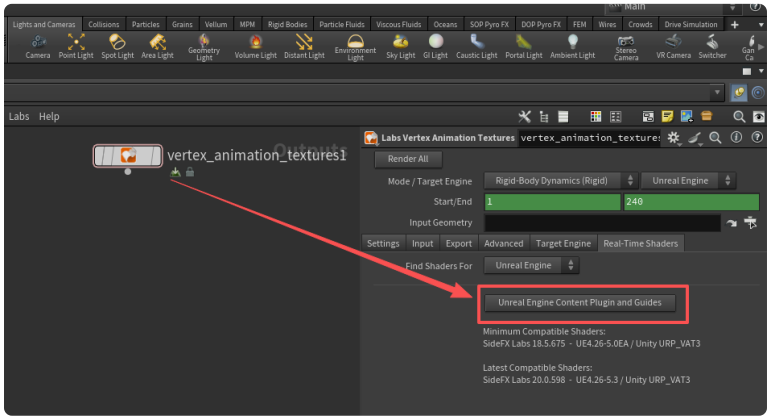
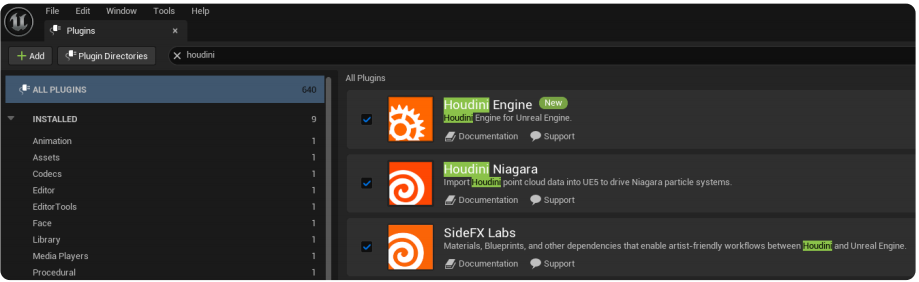
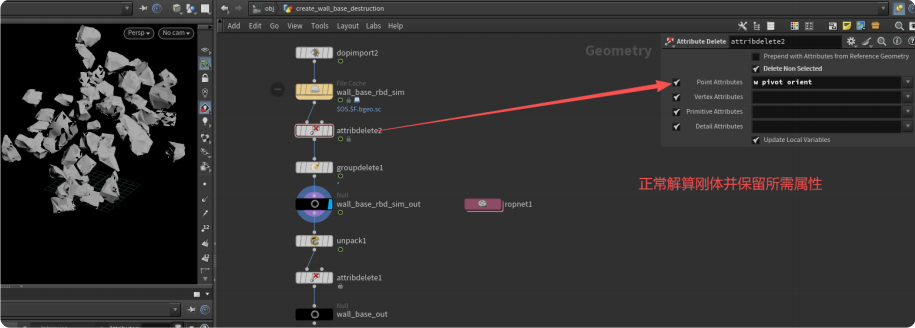
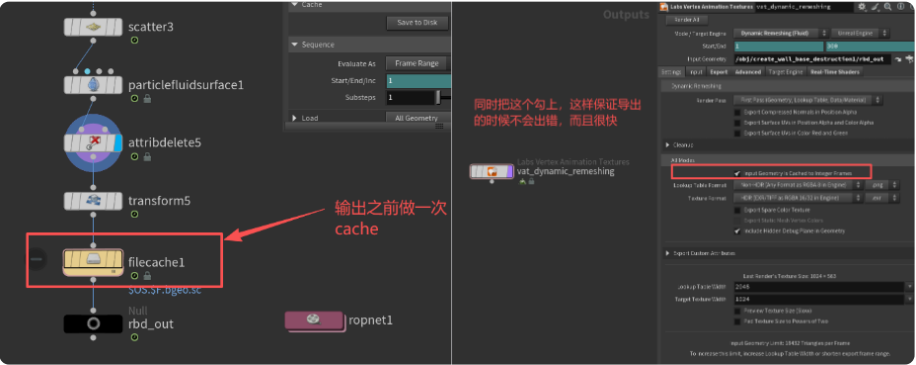
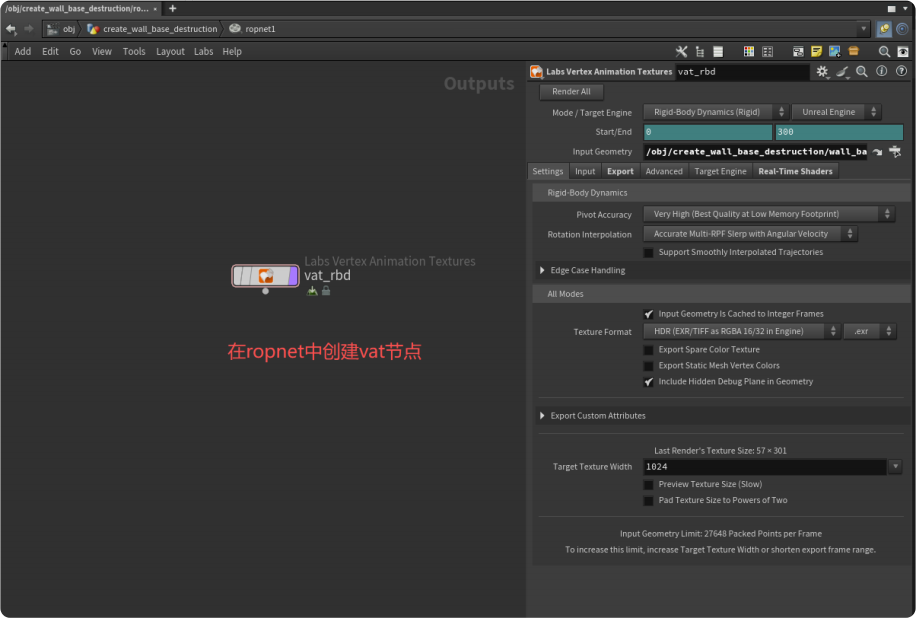
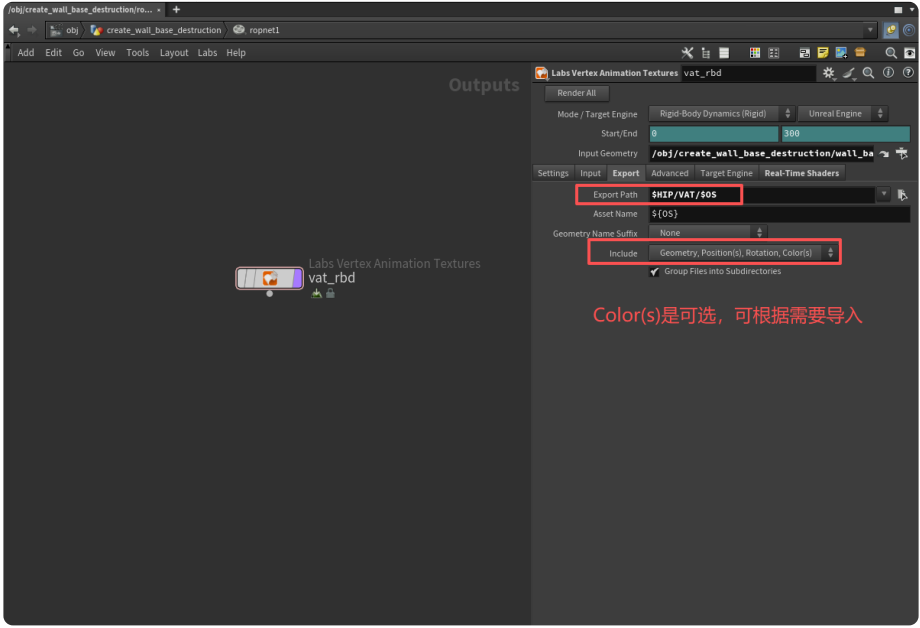
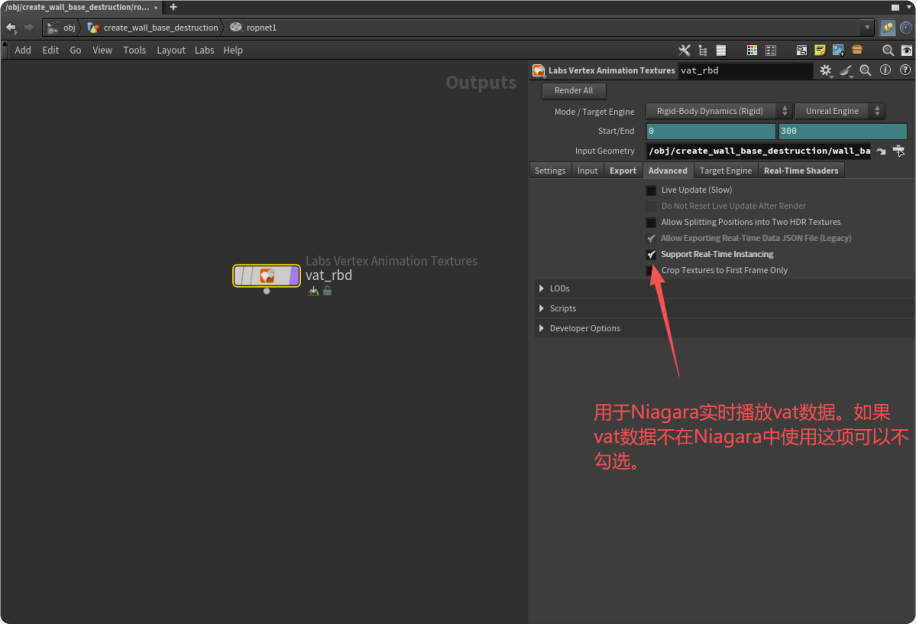
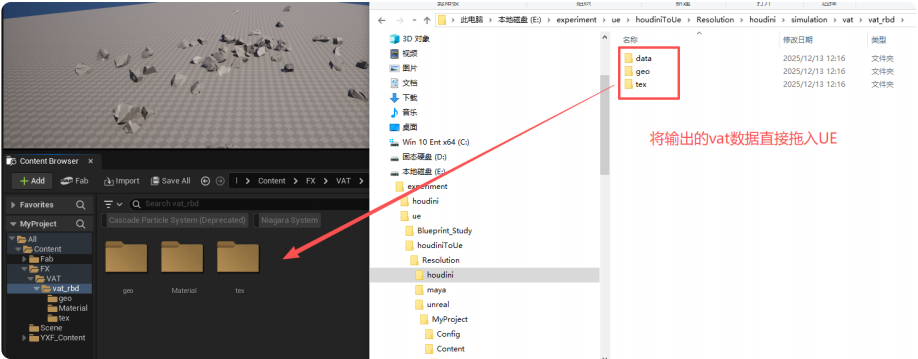
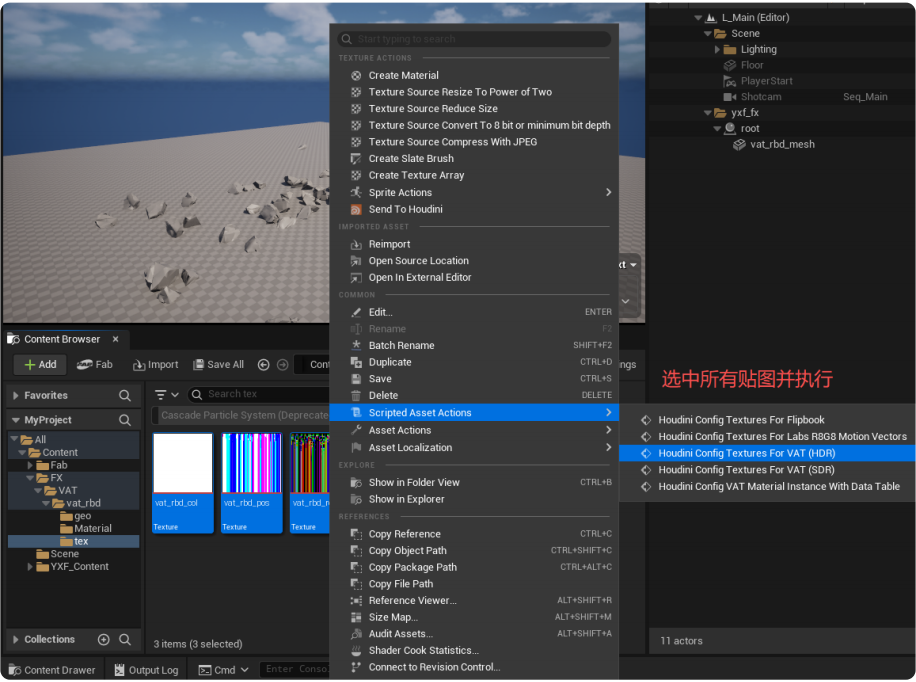
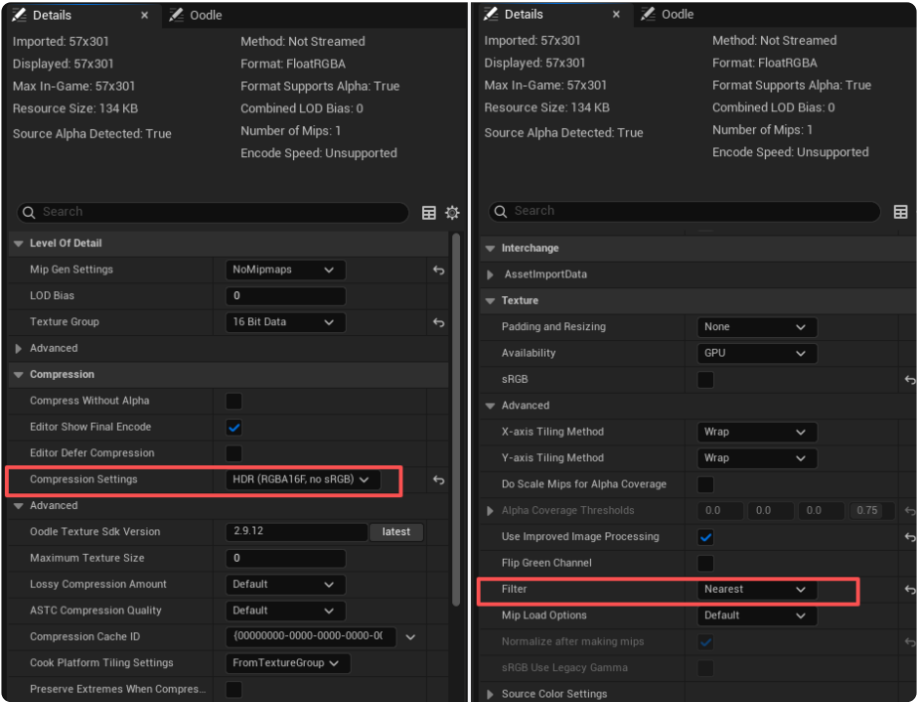
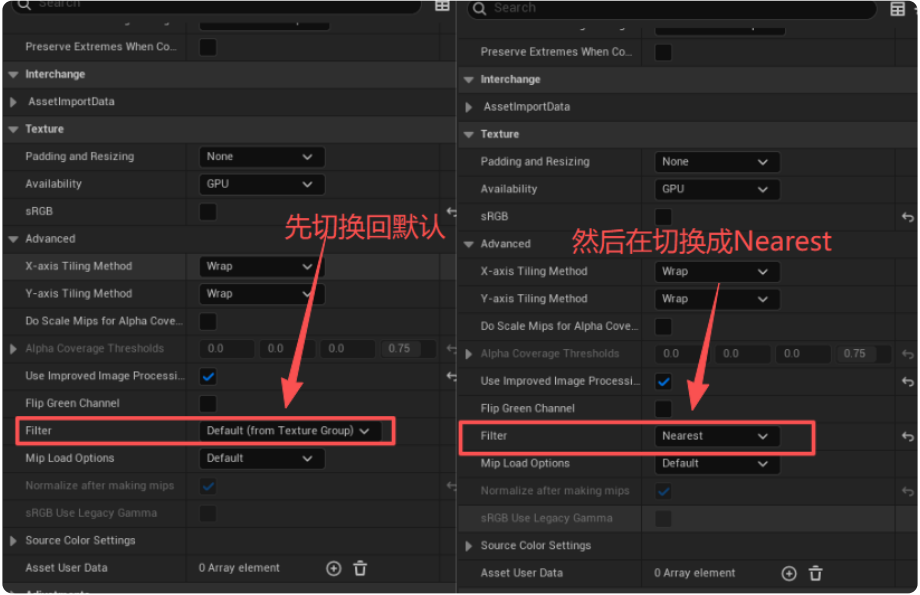
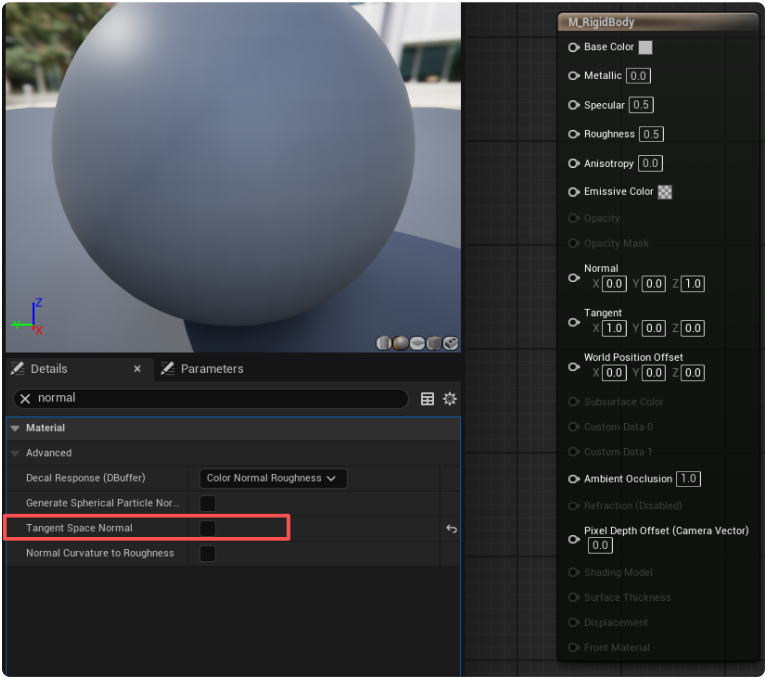
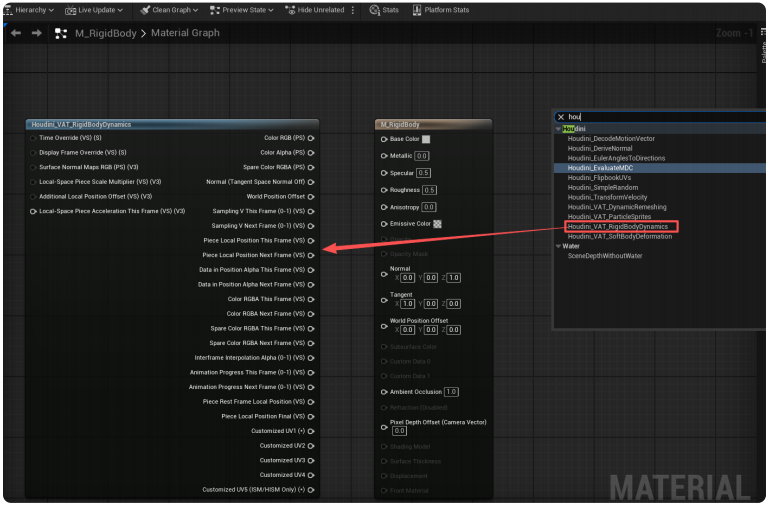
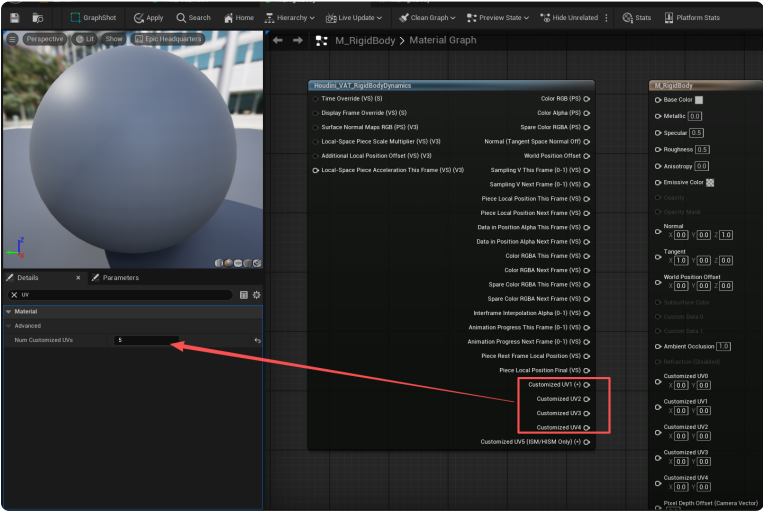
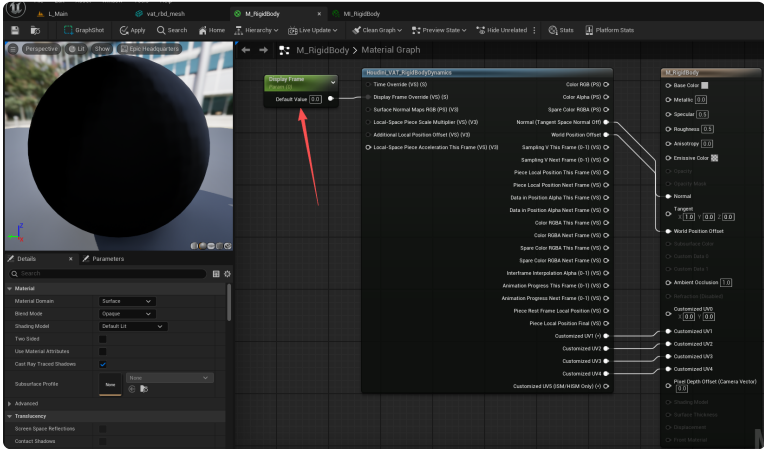
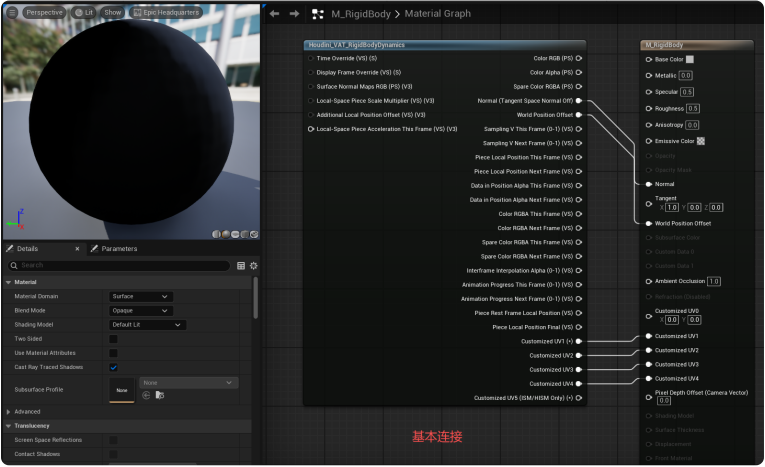
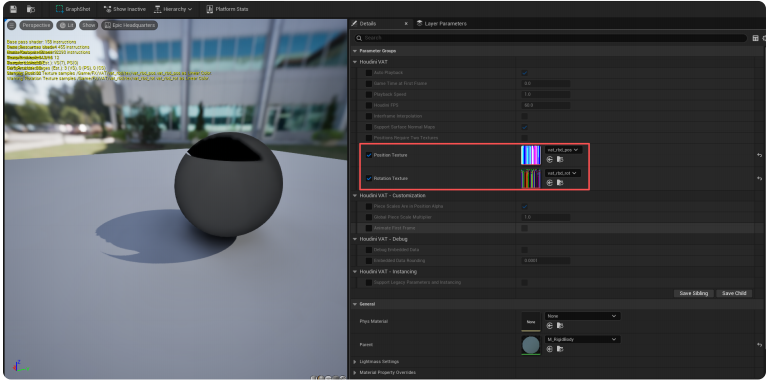
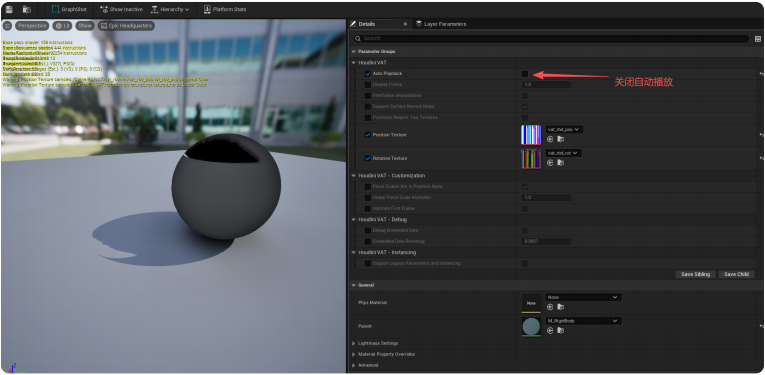
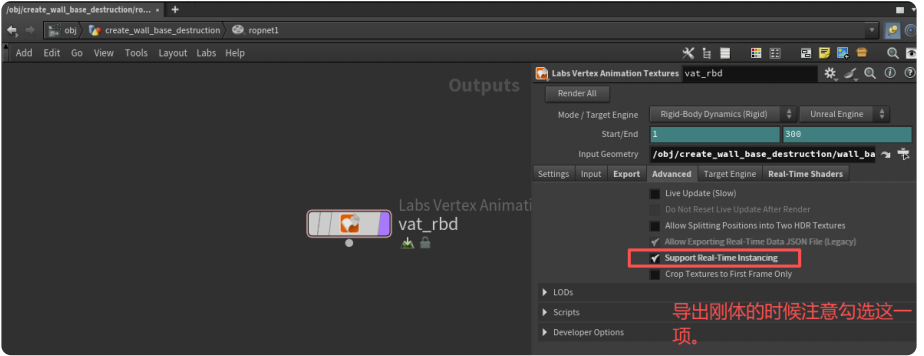
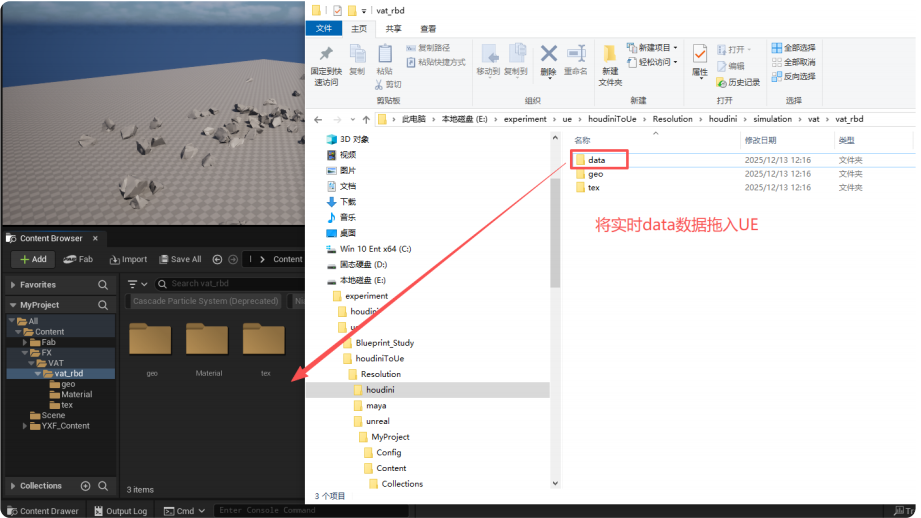
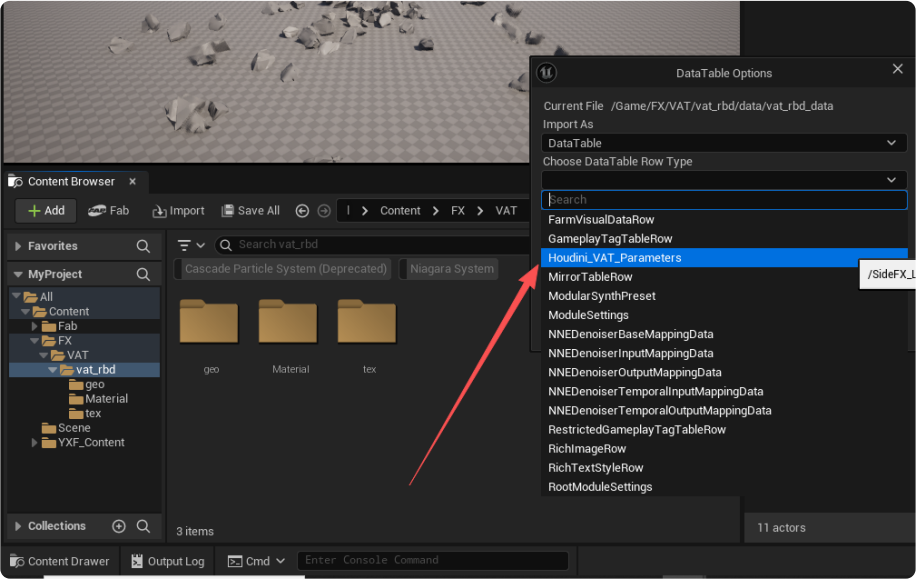
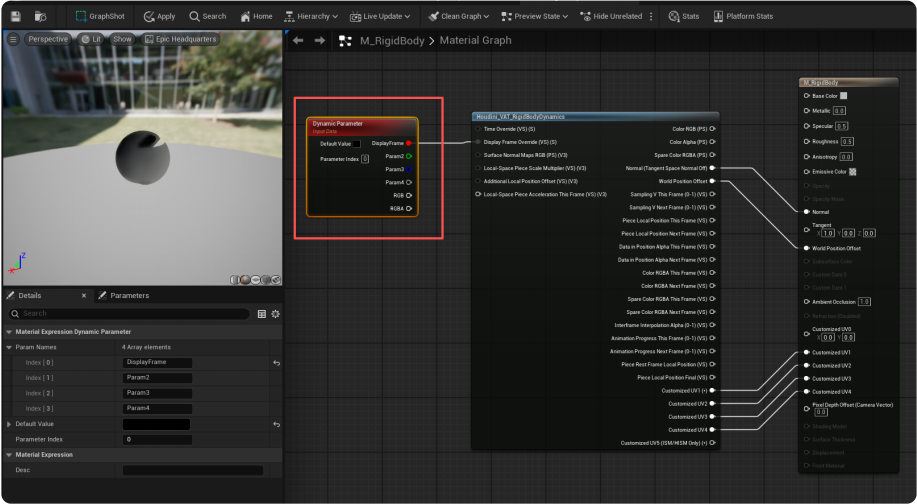
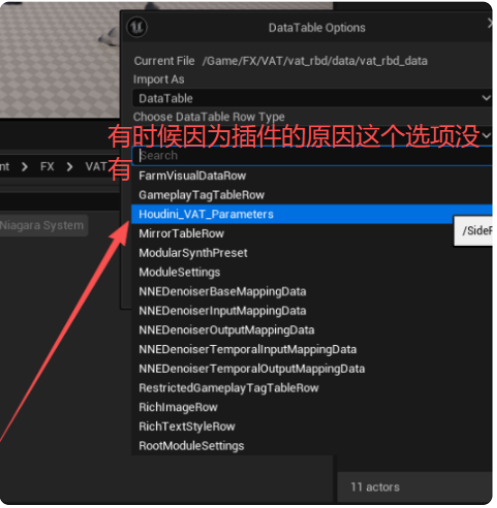
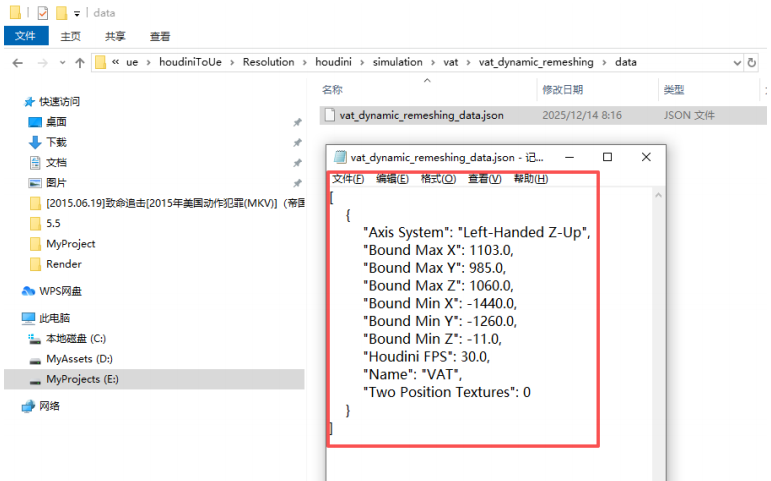
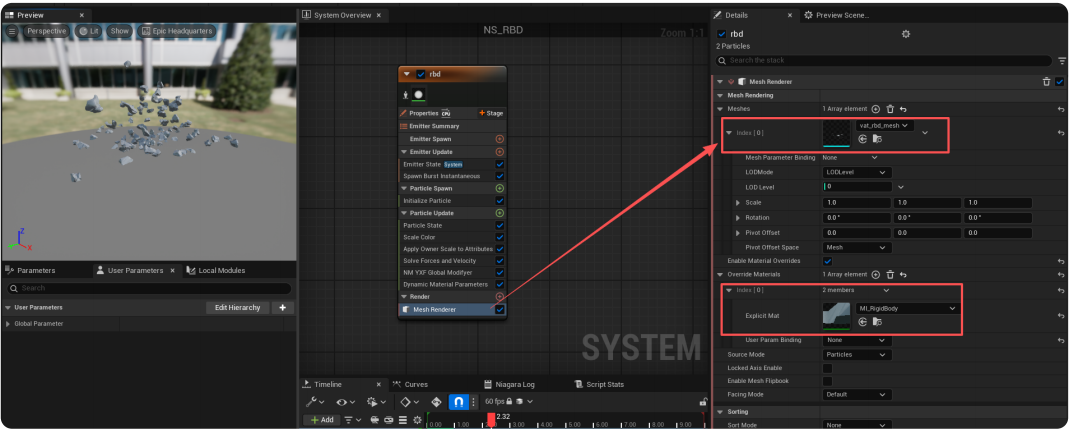
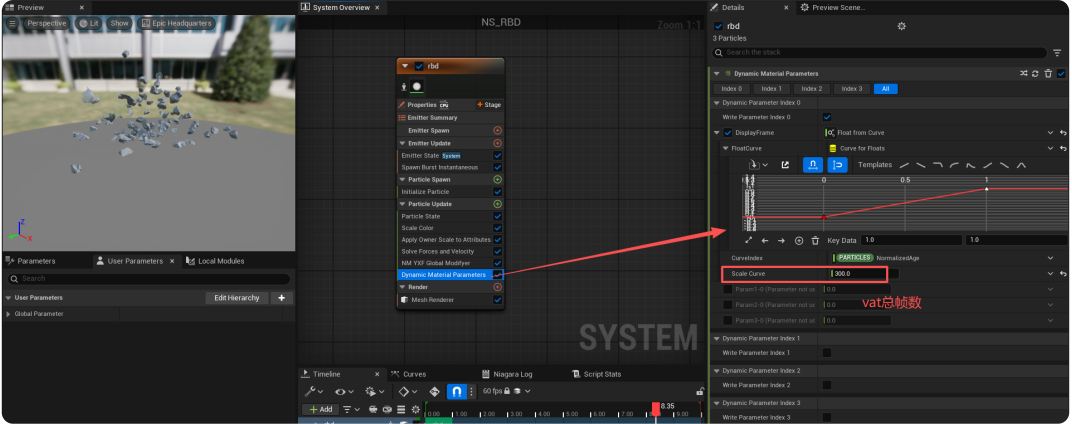
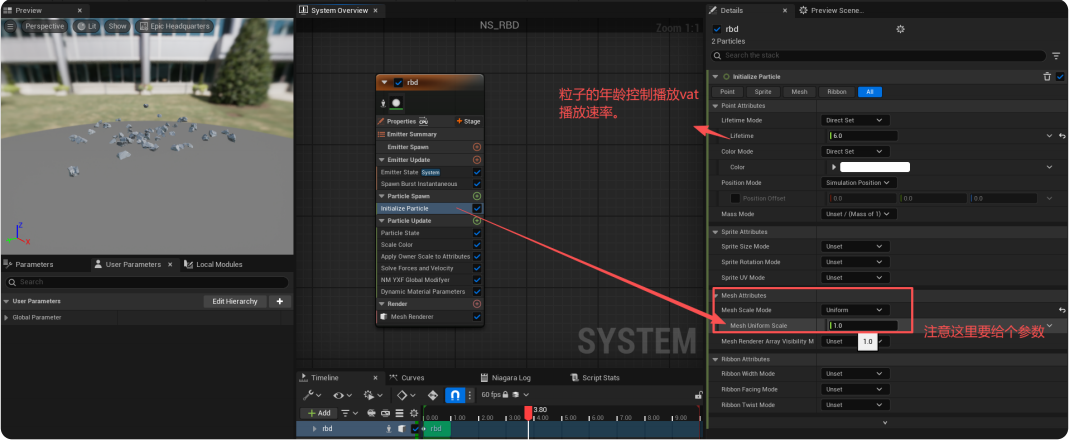
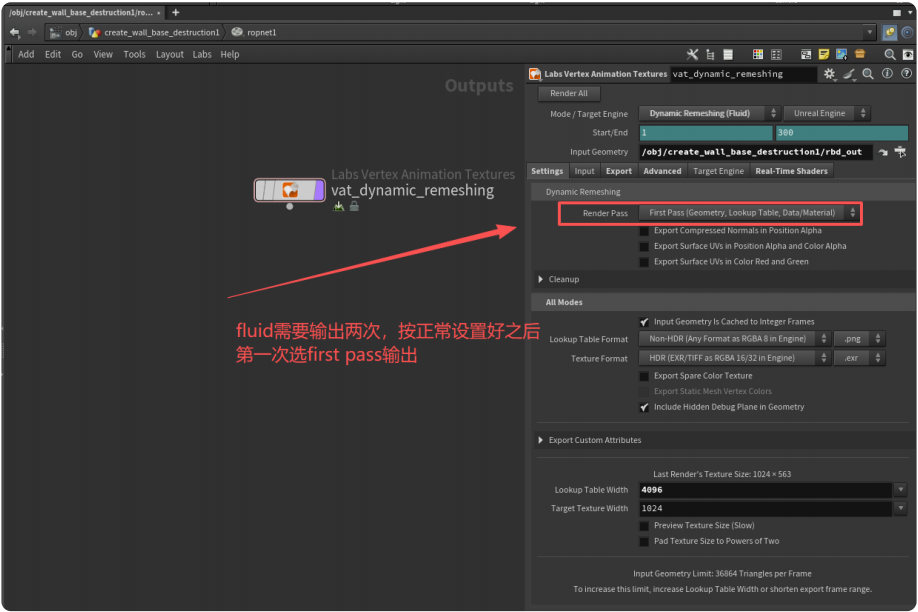
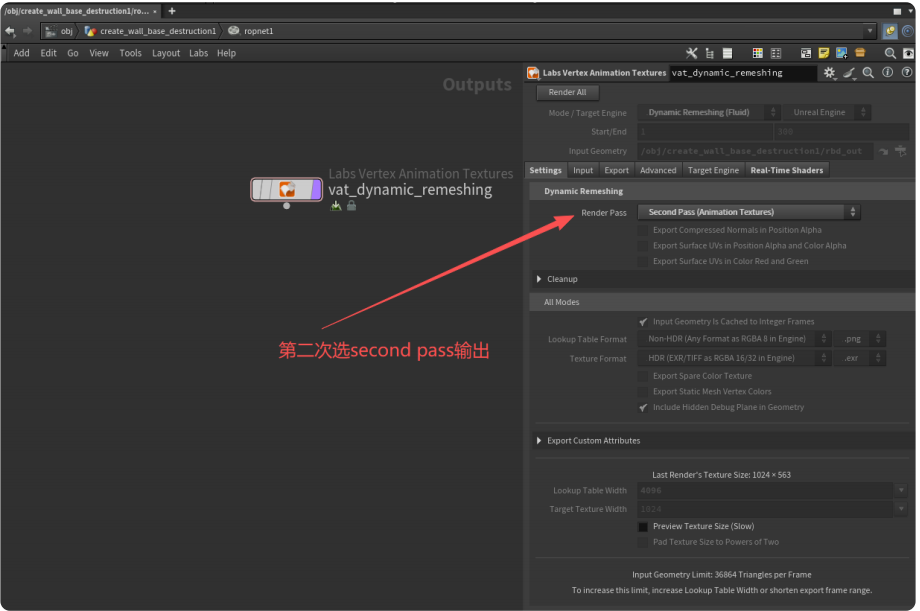
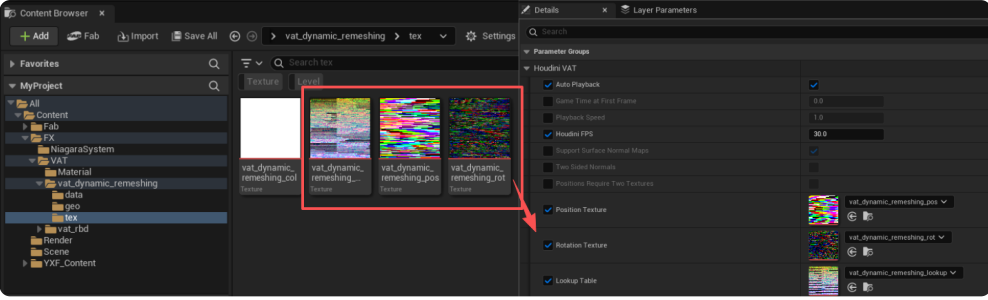
虚幻 Niagara Module特效技术QQ交流群:967848896 文章原作者:鱼非鱼 ⼀、相关插件安装 ①安装Houdini的时候勾选“houdini engin for UE”,同时勾选安装Labs。 ②将下⾯第⼀张截图中的两个⽂件夹拷⻉到第⼆张截图显⽰的路径下 ③设置⾃动启动插件(⾮必要,只是为了⽅便),如下图所⽰ ④将下⾯第⼀张截图中的两个⽂件夹拷⻉到第⼆张截图显⽰的路径下。 如果不知道这个⽂件夹在哪,可以根据下图点击红⾊框,这样Houdini会直接跳转到相应⽂件夹。 安装成功之后UE插件⽬录下会显⽰,如下图所⽰ ⼆、数据导⼊流程 1、rigid body ①数据导出导⼊ 注意:导⼊数据数据时要严格按照导⼊附录开启或关闭相关选项。 对贴图执⾏上⾯步骤之后UE将会对贴图做如下修改 UE存在⼀个bug,当执⾏这⼀步的之后有时geo还是乱的,这时可以按下图操作修复 ②创建材质 ③将vat添加到定序器 ④将vat加载到Niagara⾥⾯ 实际上,data不⽤导⼊也可以,注意,有时在导⼊Data的并没有Houdini_VAT_Parameters这个选项。 实际上,data不⽤导⼊也可以,在⽂件夹⾥⽤记事本打开也可以看到相应的数据,如下图所⽰ ⑤注意事项 *刚体解算尽量不要从第0帧开始。 *当刚体出现破⾯、炸⾯的情况时可根据以下选项解决 *刚体是确定的。也就是说刚体从起始帧开始就是确定的,不会死亡。同时刚体是以packed的状态存在。如果不是压缩状态可以⽤softbody导出,但⾯数、点数、拓扑必须是确定的。 2、soft body soft body的流程刚rigid差不多。这⾥不再介绍。需要注意的是,soft body 的⾯数、点数以及拓扑结构也是需要确定的,在整个缓存⾥不允许有变化。 3、dynamic remeshing ①数据导出导⼊ 注:如果rigid body或者soft body的⾯数、点数、拓扑是变化的情况下也可以将它们以dynamic remeshing的⽅式导出到UE。 除了以上步骤,其它的跟rigid body ⼀样。 ②注意事项 *geo可以从⽆到有(起始帧可以没有任何东西),或者从有到⽆。 *
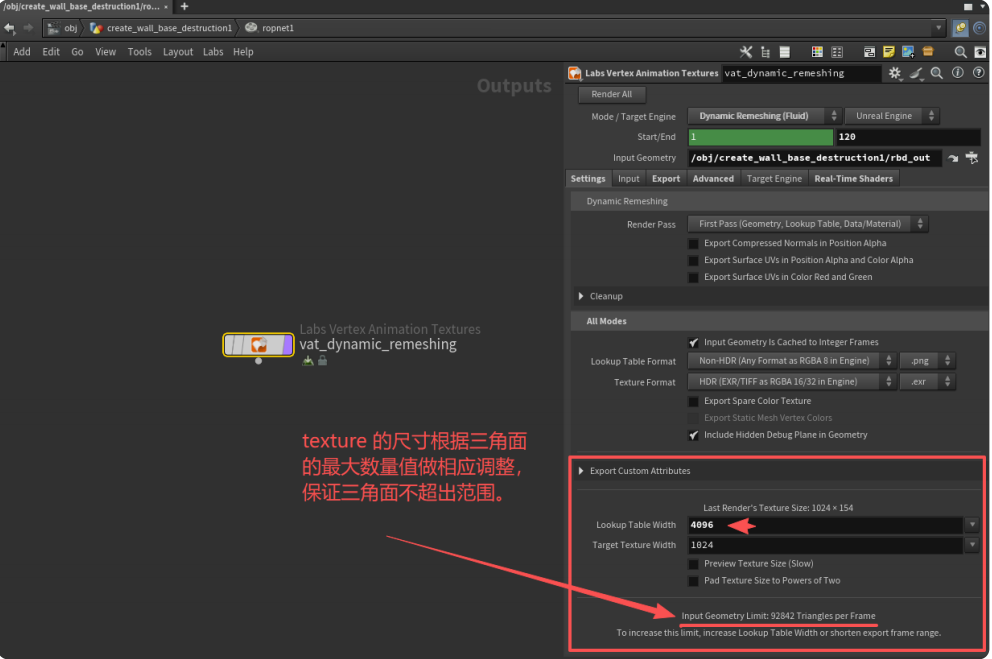
*
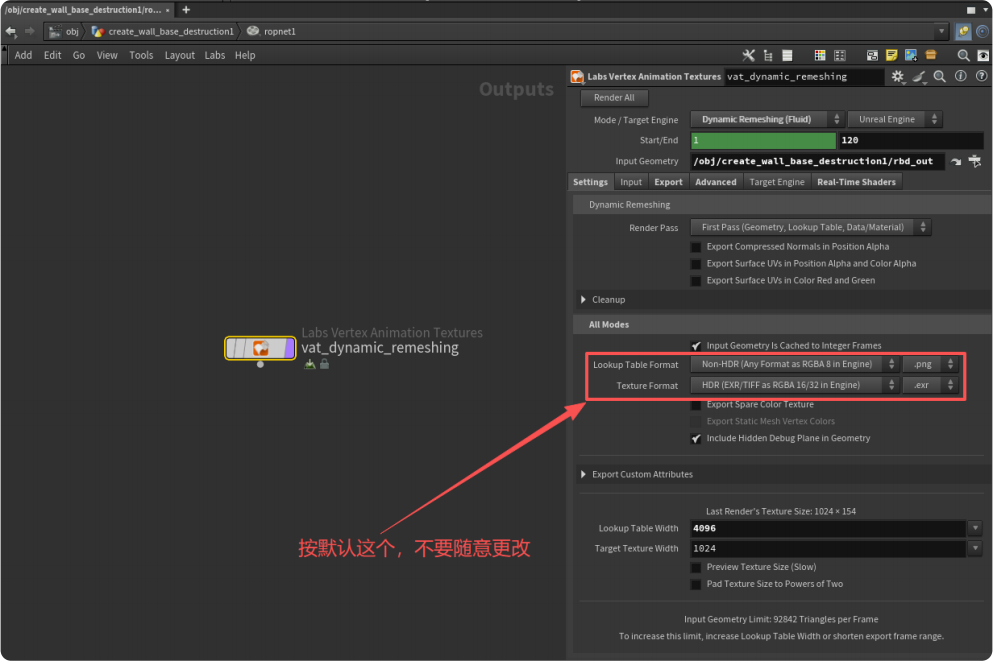
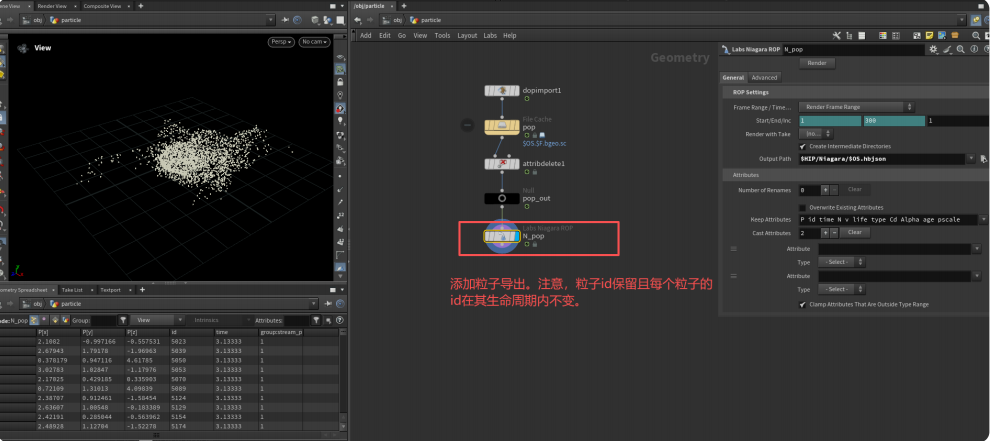
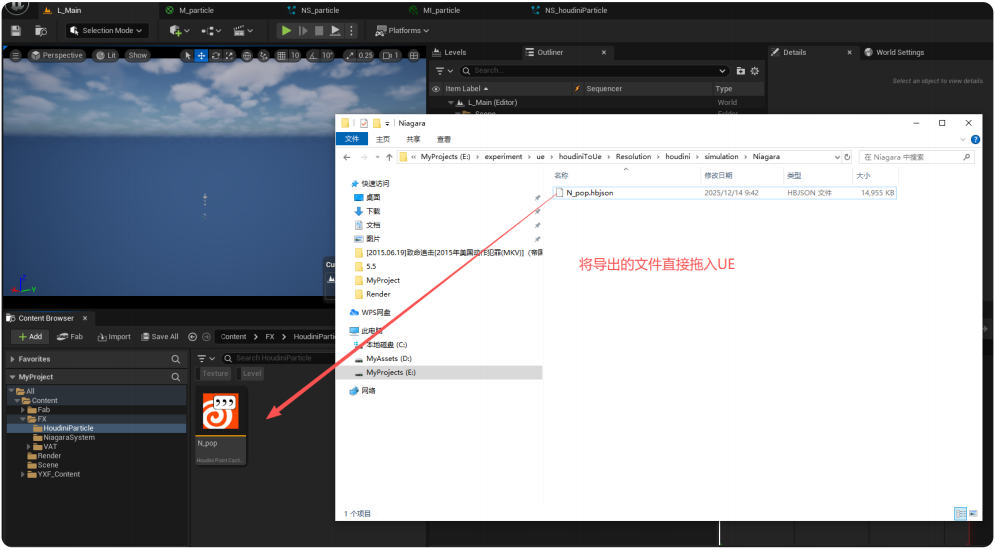
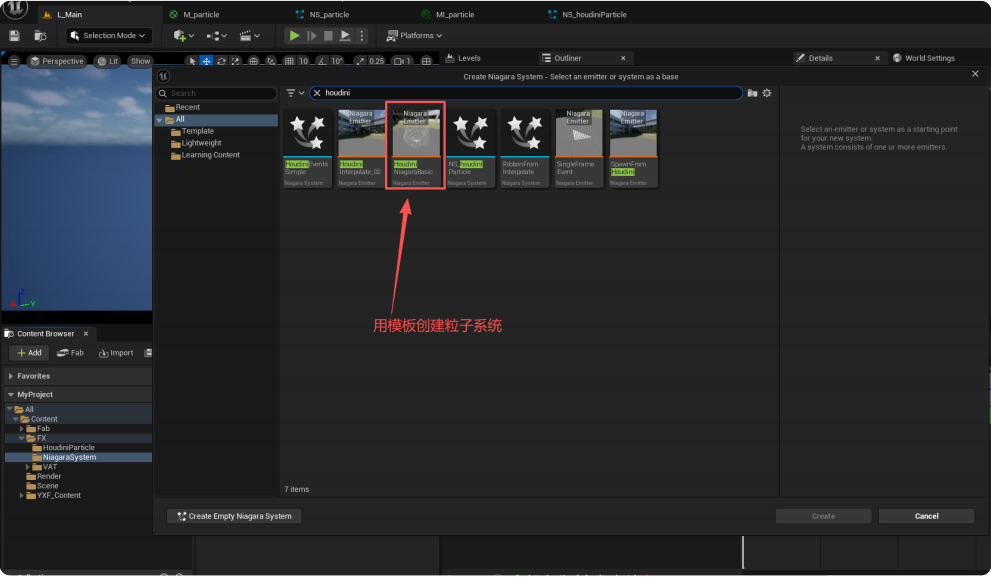
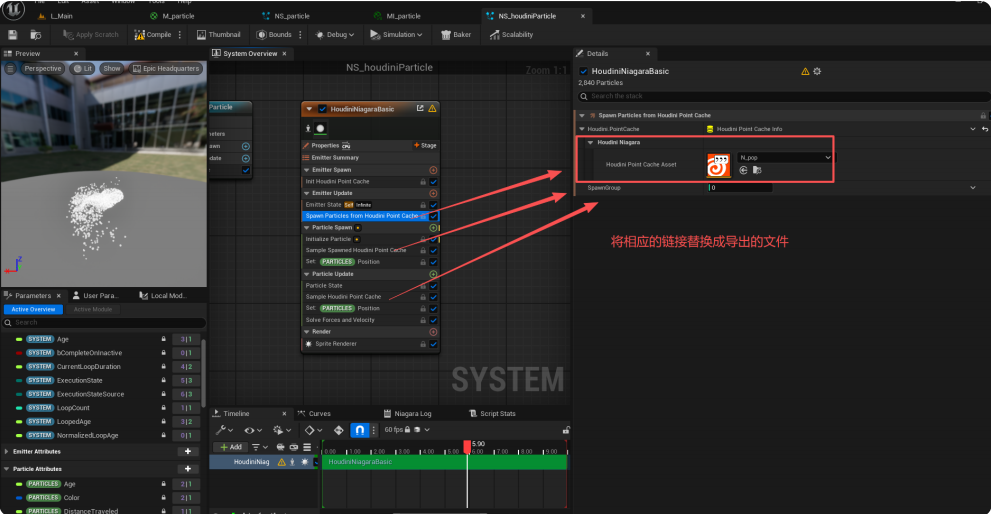
4、Particle Sprites ①数据导出导⼊ 跟前⾯类型⼀样。particles数量是可以变化的,但是每个粒⼦的id要确定,即,每个粒⼦的id在其⽣命周期内固定不变。 三、Niagara流程 数据导出导⼊
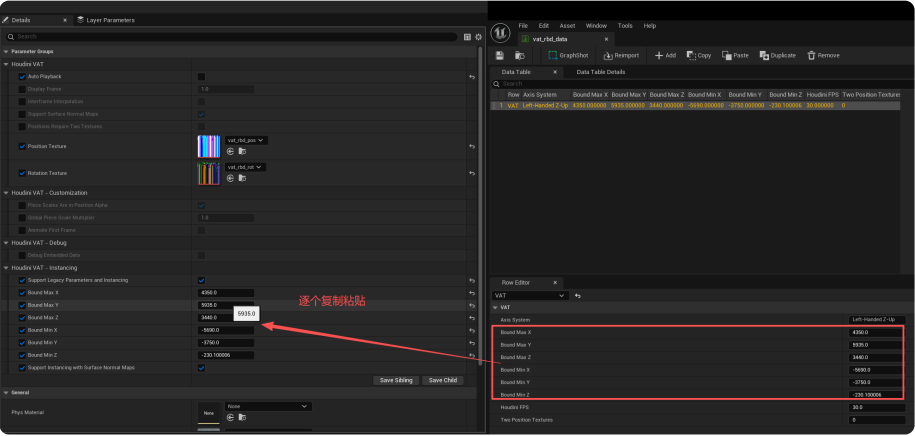
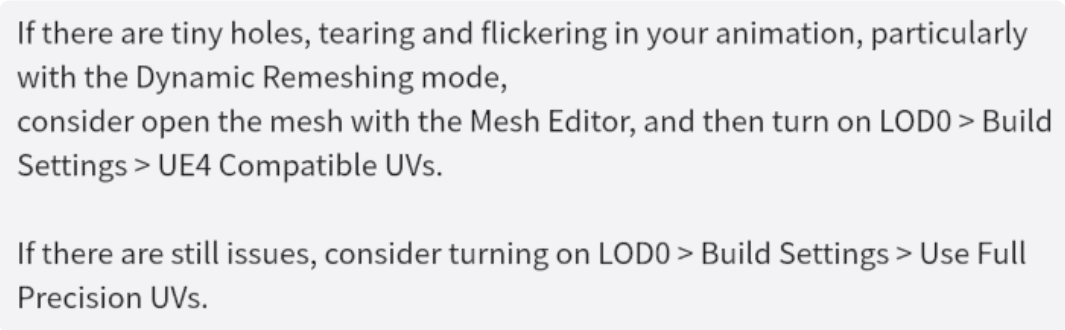
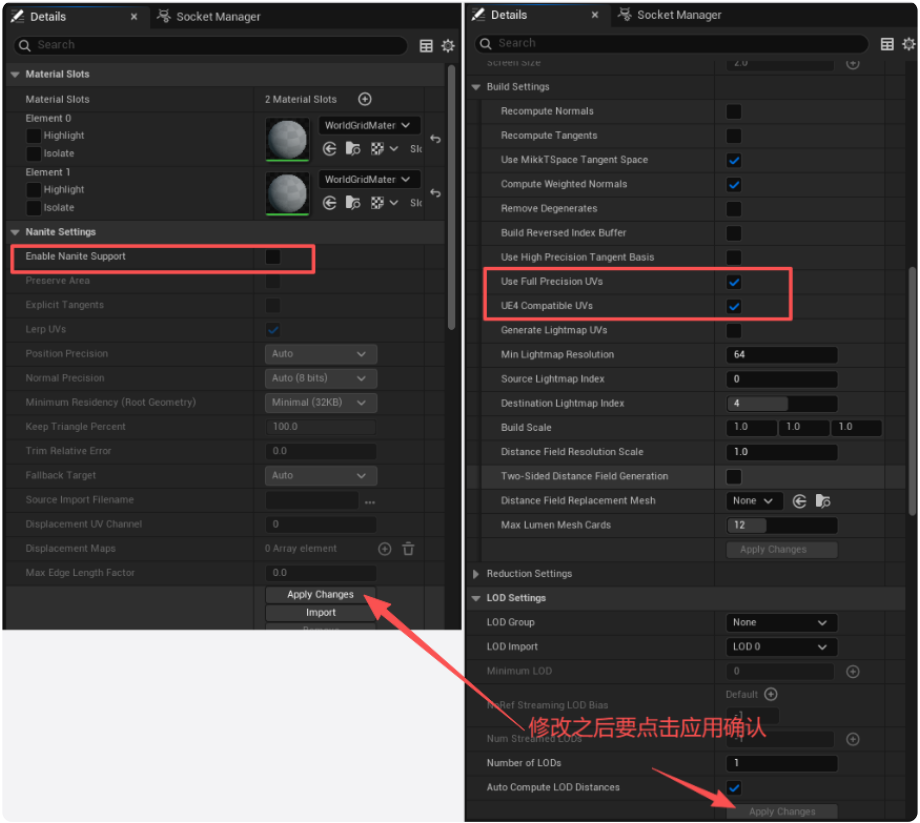
附录 I. FBX Import Settings Make sure the following settings are set to the these values (you can find the settings using the Search bar): Offset Uniform Scale: 1.0 Import LODs: On Vertex Color Import Option: Replace Recompute Normals: Off Recompute Tangents: Off Remove Degenerates: Off Import Static Meshes: On Fallback Collision Type: None Build Reversed Index Buffer: Off Build Scale: 1.0 | 1.0 | 1.0 II. Texture Settings 1. In the Content Browser, select multiple textures. 2. Rght-click on any selected textures and go to Scripted Asset Actions. 3. Select either Houdini Config Textures for VAT (HDR) or Houdini Config Textures for VAT (SDR) to match Settings > All Modes > Texture Format on the VAT node in Houdini. 4. Hit Ctrl+S on selected textures to confirm the changes. 5. In Unreal, sometimes there are issues with power-of-two textures that have data in their alpha channels,in which case, consider using Houdini Config Textures for VAT (HDR) even if you exported those textures in SDR (non-HDR) formats in Houdini. III. Static Mesh Settings If there are tiny holes, tearing and flickering in your animation, particularly with the Dynamic Remeshing mode, consider open the mesh with the Mesh Editor, and then turn on LOD0 > Build Settings > UE4 Compatible UVs. If there are still issues, consider turning on LOD0 > Build Settings > Use Full Precision UVs. IV. Real-Time Data (JSON) File VAT 3.0 normally does not require the Real-Time Data file, but you may still export it in certain situations: A. You definitely have to use the legacy workflow in order to apply VAT materials to instanced meshes (ISM/HISM) or mesh particles. B. You probably should use the legacy workflow if your animation spans a huge area. Steps: 1. On the VAT node, go to Advanced, turn on Support Real-Time Instancing. 2. Render your assets. 3. In the UE Material Instance, turn on Support Legacy Parameters and Instancing. 4. Enable all six parameters now appearing below Support Legacy Parameters and Instancing. 5. Follow their tooltip to batch-set their values (all six bound parameters share the same tooltip). |  加载中...


 搜索
搜索

 北京巅峰
北京巅峰
 画画的阿杜
画画的阿杜
 jackpot6



 提升卡
提升卡 置顶卡
置顶卡 沉默卡
沉默卡 喧嚣卡
喧嚣卡 变色卡
变色卡 显身卡
显身卡